![qpbvjgyfsatax1w7v6mw.png]](https://knowledge.junipeer.io/hs-fs/hubfs/qpbvjgyfsatax1w7v6mw.png?width=300&height=91&name=qpbvjgyfsatax1w7v6mw.png)
Preparations
Get Svea API Keys
Contact Svea Support to obtain your API credentials.
Notes:
-
You may receive multiple API keys depending on markets or payment methods. We can setup multiple integrations in this case.
Prepare Fortnox
Follow this guide. https://knowledge.junipeer.io/knowledge-base/guide-fortnox-settings-before-starting-integration
Onboarding
We can review settings and help with onboarding at no extra cost.
1. Select What to Sync
Choose the Svea data entities you want to synchronize. Common selections:
-
Orders
-
Invoices
-
Refunds
-
Payouts
2. Connect the Systems
Add Svea API Keys
Enter the Svea API credentials in Junipeer. If multiple key sets exist, match them with the correct configuration.
Connect to Fortnox
Authenticate with the prepared Fortnox integration user through Fortnox OAuth and approve access.
3. Configure Integration Steps
Configure the integration in each step.
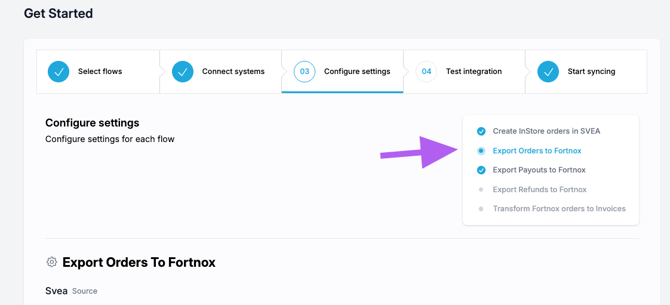
Some important settings
Add Order number to Fortnox
Set the mapping according to screenshot for "Add Order number to Fortnox", we will use this to match the payouts.


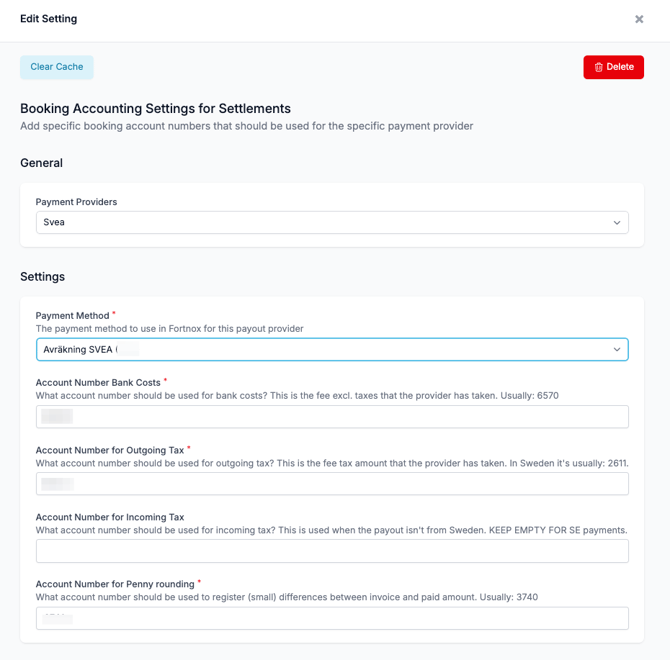
Booking Accounting Settings for Settlements
Set this so we can book the payout to your payout account.
Chosing the payment ID mapping
This is an important step, configured under Settings -> Payout -> Use Checkout ID as payout payment reference (Payment ID).
This checkbox should be switched on if your orders are “external” from Svea (generated in the e-commerce platform, for example).

Sales account OSS
See the OSS guide for Fortnox
4. Test the Integration (not mandatory)
Svea identifies orders by Checkout ID. Use one or more Checkout IDs to test:
-
Order creation in Fortnox
-
Invoice generation
-
Refund/credit matching
-
Payout mapping
Activate the Integration
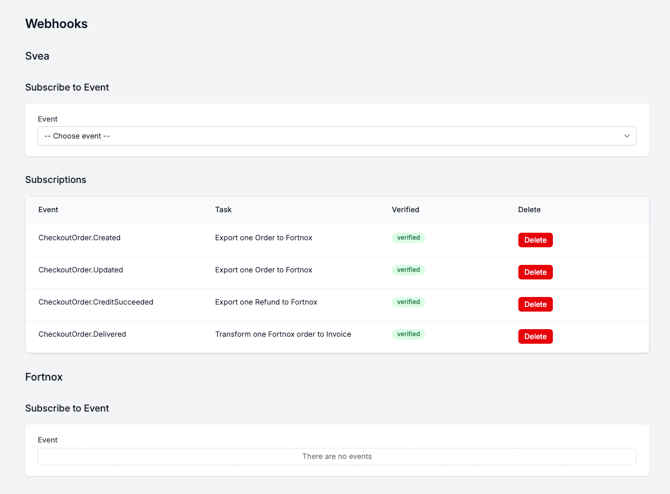
Enable Svea webhooks so events flow automatically to Junipeer, triggering real-time synchronization.
Currently the start button does not support webhooks use the menu in the screenshot.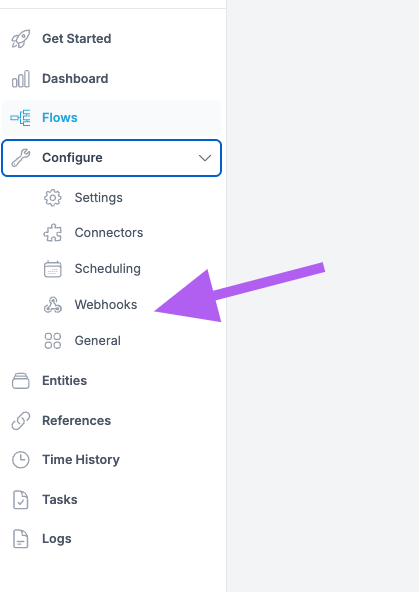
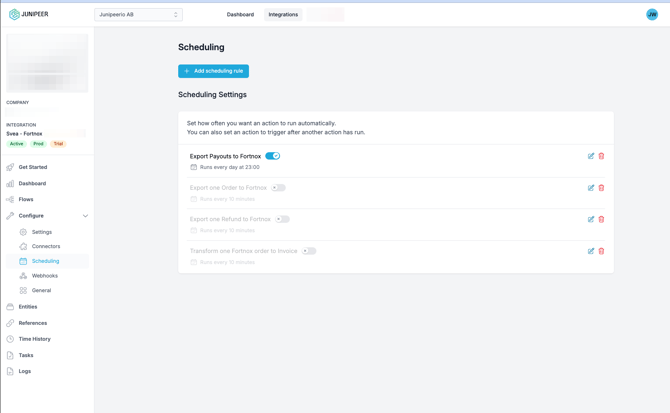
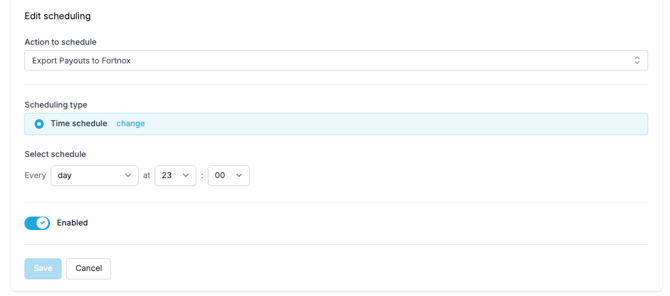
Set the payout sync to 23:00
Retroactive Sync
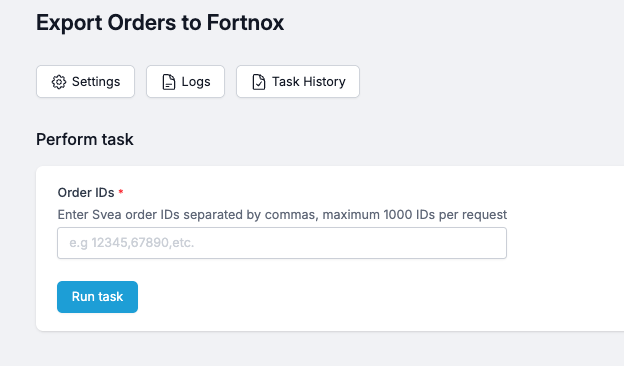
You can sync historical orders by entering their Svea Checkout IDs in Junipeer. 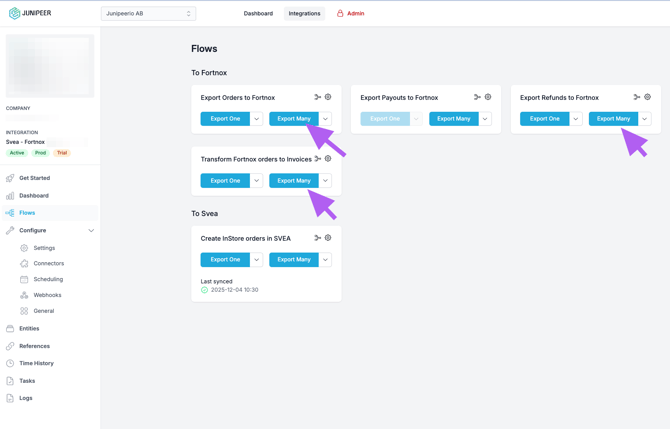
How the Integration Works
1. Order Creation
When an order is created in Svea, Junipeer creates a corresponding Order in Fortnox.
2. Invoice Creation at Delivery
At delivery, an Invoice is automatically created in Fortnox to ensure correct revenue handling.
3. Refunds and Credit Invoices
When a refund occurs in Svea:
-
A Credit Invoice is created in Fortnox and linked to the original invoice.
Note: Fortnox does not support multiple credit notes for a single invoice. Multiple partial refunds may require manual adjustments.
4. Payout Reconciliation
When Svea issues a payout:
-
Each payout line is matched to invoices or credit invoices.
-
A write-off is posted for Svea payment fees, ensuring accurate reconciliation.