![qpbvjgyfsatax1w7v6mw.png]](https://knowledge.junipeer.io/hs-fs/hubfs/qpbvjgyfsatax1w7v6mw.png?width=300&height=91&name=qpbvjgyfsatax1w7v6mw.png)
Preparations - external platforms
Prepare Fortnox
Follow this guide:
https://knowledge.junipeer.io/knowledge-base/guide-fortnox-settings-before-starting-integration
Prepare Shopify
Get the API key
https://knowledge.junipeer.io/knowledge-base/how-to-get-the-shopify-api-key
Get Started - Onboarding
Push get started in the left menu.

1. Select What You Want to Sync
If you just want to sync bookkeeping. Select these:
-
Orders/Invoices -> Fortnox
-
Refunds -> Fortnox
- Payouts -> Fortnox
2. Connect Shopify and Fortnox
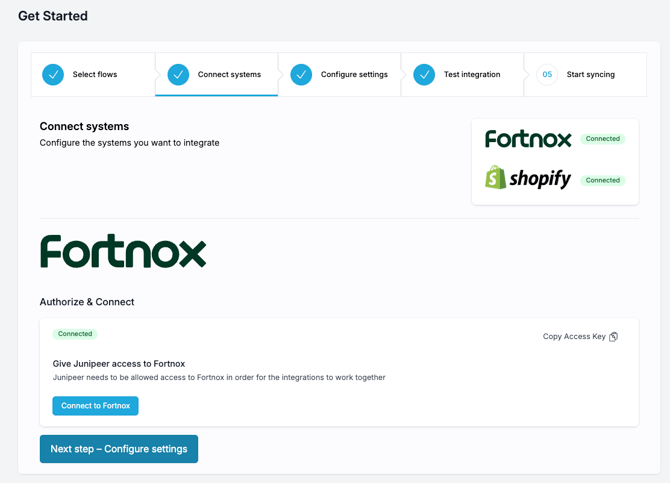
2a. Connect Shopify
-
Click on Shopify logo and enter the API credentials from Shopify.
2b. Connect Fortnox
-
Click on Fortnox logo and log in with the Fortnox integration user.
3. Configure Integration Steps

Configuration best practice:
3a. OSS configuration
See the OSS guide for Fortnox
3b. Export Payouts to Fortnox
To configure the settlements made through Shopify, please accss the Export Payouts to Fortnox settings to add the payment options:
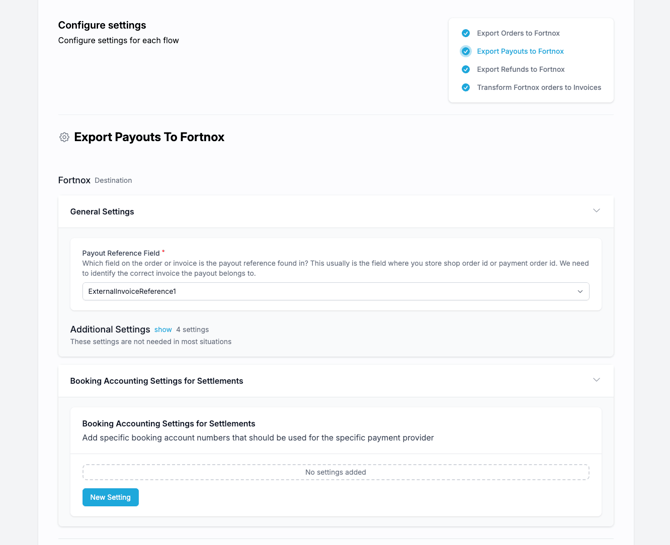
Here you connect a Payment Account Number to each payment provider registered in Fortnox and add a currency as well.
Payouts will be registered with the currency that the merchant was payed with. It may not be identical to the sales currency (the one exposed to the end-user).
The order invoice currency can be modified in Export Orders to Fortnox -> Order Settings -> Use presentment currency (money).
3c. Configure non-integrated payment options
For extra payment services (not settled with Junipeer connector), you can navigate to Configure -> Settings -> Invoice settings -> Additional settings and connect the payment methods registered in Shopify (ie PayPal) with the Fortnox modes of payment:
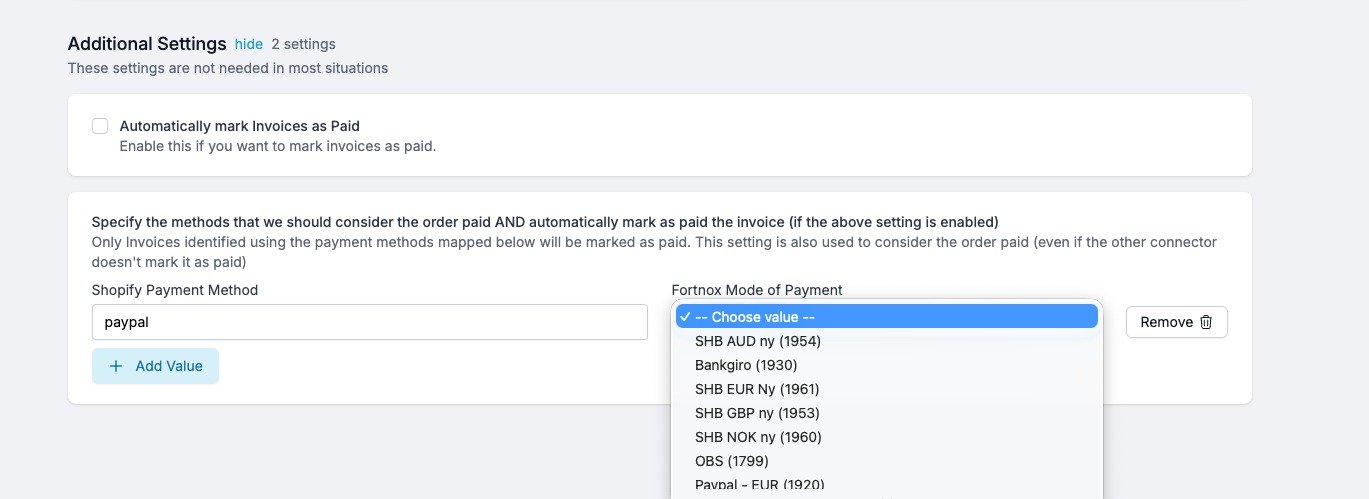
Make sure to tick the "Automatically mark invoices as Paid" to automate the non-integrated payment methods with marking them immediately as paid.
4. Test the Integration
Perform end-to-end validations:
-
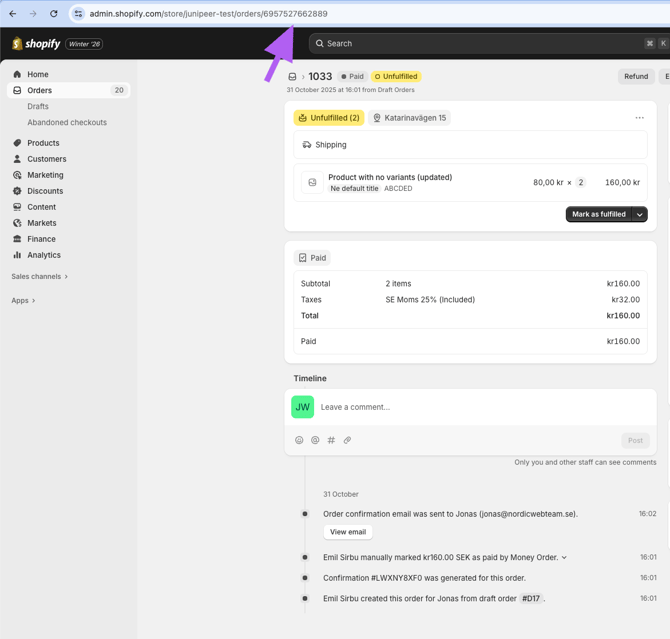
For example create a test order in Shopify. Note that this is the long order ID located in the adress bar of your Shopify.

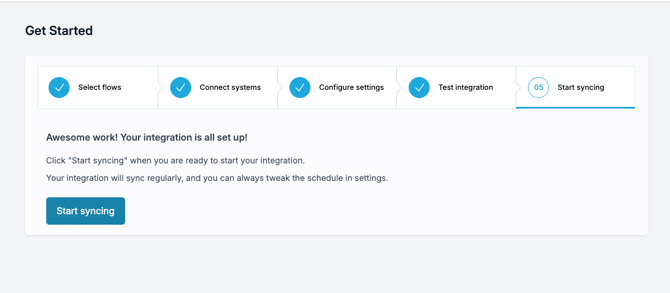
5. Activate Sync
-
Start the integration to enable live syncing
Other Useful Information
Retroactive Sync
You can sync past Shopify orders using order IDs or date ranges.
Multi-Channel Support
If you operate multiple Shopify stores, Junipeer can handle them under one account as long as they belong to the same company or you have an appropriate contractual setup.
How It Works
1. Order Created
When an order is placed in Shopify, Junipeer imports it and creates a corresponding Order in Fortnox. Depending on configuration, invoices may also be created immediately or at fulfillment.
2. Invoice Created
-
Invoice is Created when order is captured in Shopify
3. Refund Handling
If a refund occurs in Shopify:
-
A credit invoice is created in Fortnox and linked to the original invoice.
-
Note: Fortnox does not support multiple credit invoices linked to a single invoice.
4. Payment Reconciliation
If you use Shopify payments we have it built in the connector.
If the store uses external PSPs (e.g., Svea, Walley, Qliro), payment reports can be matched to corresponding invoices and write-offs created for payment provider fees. This requires an additional connector which you can subscribe to separately.