![qpbvjgyfsatax1w7v6mw.png]](https://knowledge.junipeer.io/hs-fs/hubfs/qpbvjgyfsatax1w7v6mw.png?width=300&height=91&name=qpbvjgyfsatax1w7v6mw.png)
Step 1: Accessing Notifications
-
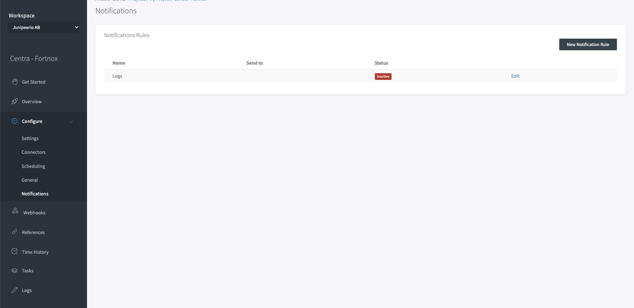
Navigate to the Notifications section in the dashboard.
-
Here you'll find a list of Notification Rules with details such as
Name,Send to, andStatus.- Logs: Indicates the name of the notification rule.
- Send to: Displays the recipient or method the notification will be sent to (this field is to be set in further steps).
- Status: Shows if the rule is
activeorinactive.
To edit an existing rule, click on the
Editbutton next to its status.
Step 2: Creating a New Notification Rule
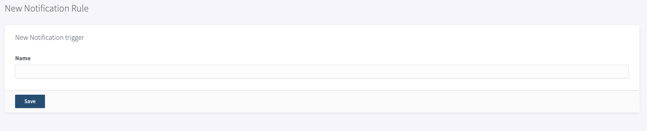
- Click on New Notification Rule to set up a new trigger.
- You will be prompted to name your new notification rule. Choose a name that clearly represents the type of notifications this rule will handle.
Step 3: Editing a Notification Rule
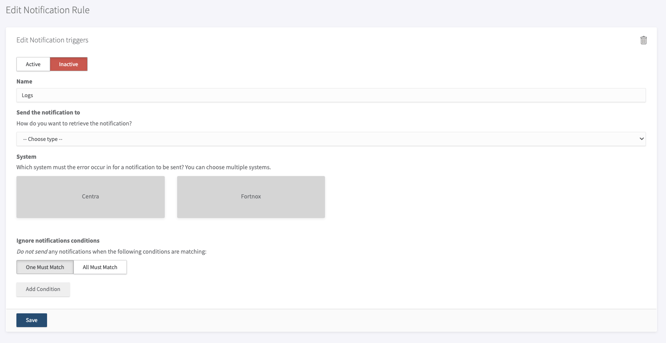
- Under Edit Notification triggers, you'll see the name of the rule you're editing. For instance,
Logs. - Set up where to Send the notification to by selecting how you wish to retrieve the notification from the dropdown menu.
Selecting Systems
- Under System, you will choose which system(s) the error must occur in for a notification to be sent.
- You can select multiple systems from the provided list, such as
CentraorFortnox.
Ignoring Notifications Conditions
-
You have the option to Ignore notifications conditions. This feature allows you to specify conditions under which a notification should not be sent.
-
Set conditions based on the
Title of the Notificationand the corresponding value by choosingEqualsor another appropriate comparator, then entering the value to match. -
Use the
Add Conditionbutton to apply multiple conditions if necessary. -
Once all conditions are set, click Save to activate the notification rule.
Remember to review the accuracy and completeness of each notification rule to ensure you receive the correct alerts.